How to use RID
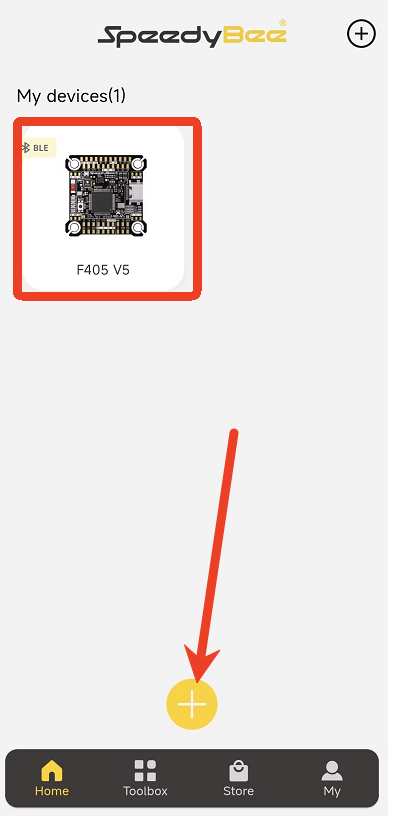
I. Connect Device
- Open the APP.
- Connect to your flight controller (e.g., F405 V5).
- Ensure the Bluetooth connection is stable.
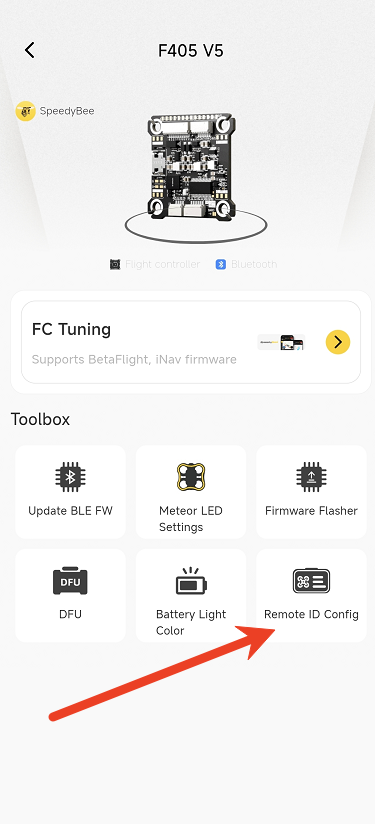
II. Access Remote ID Config
- Navigate to the Device Details page.
- Tap Remote ID Config.
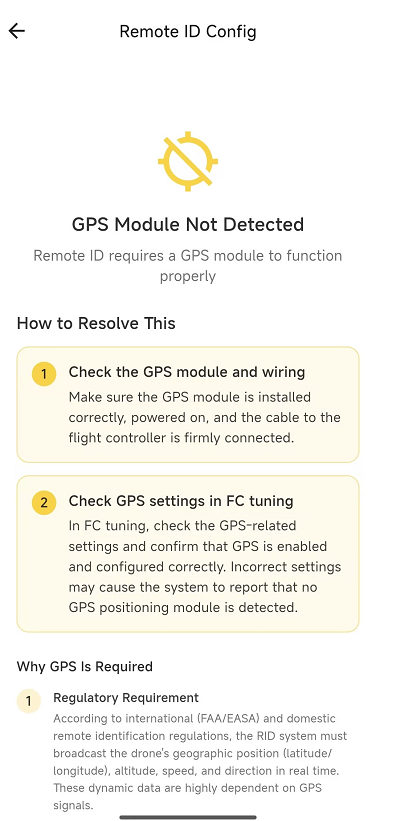
III. Check GPS Status
- If a "GPS Module Not Detected" pop-up appears, please resolve the GPS issue first.
- If no error occurs, proceed to the next step.
IV. Enable Remote ID
Enable Remote ID
Once Remote ID is enabled, it cannot be disabled in the app. Please confirm before continuing.
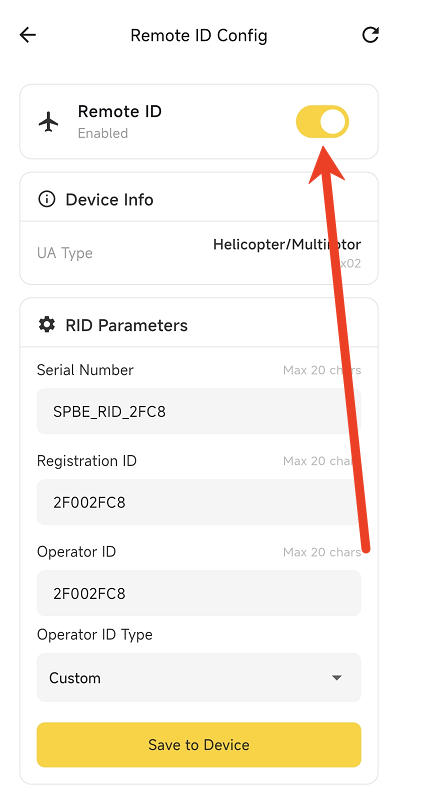
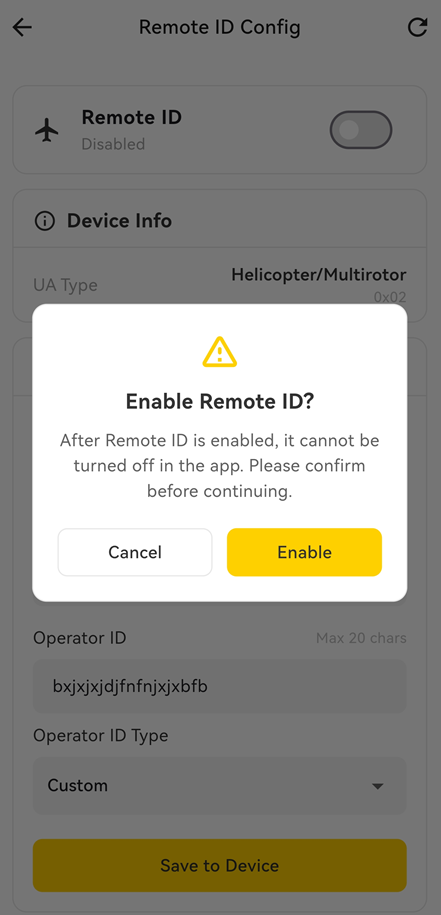
V. Complete Local Civil Aviation Authority Registration
Before configuring RID parameters, please ensure that you have completed the drone registration with your local civil aviation authority to ensure flight compliance. Please comply with the laws and regulations in your specific region.
Example:
FAA Registration Portal: https://faadronezone-access.faa.gov/#/
You must register your drone in the system to obtain a valid Remote ID serial number and Registration ID.
VI. Fill in RID Parameters
Please accurately enter the following parameters based on your actual information:
- Serial Number
- Registration ID
- Operator ID
- Operator ID Type [Click here to view the FAA registration tutorial]
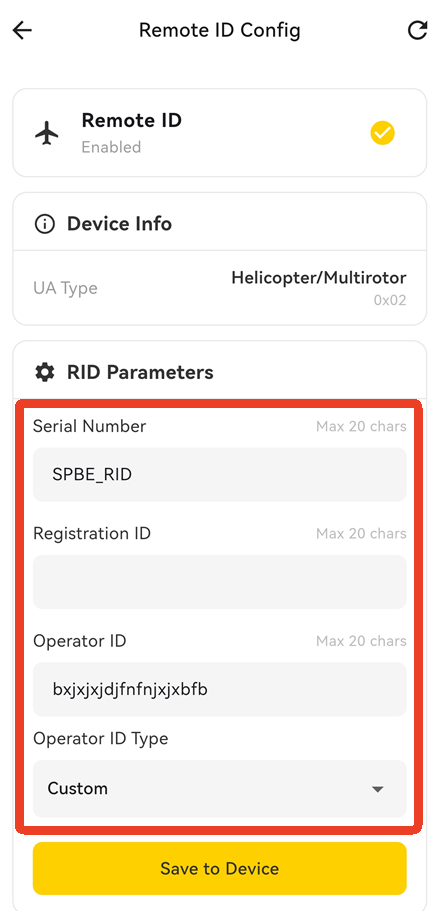
VII. Save to Device
- Tap Save to Device.
- Wait for the confirmation that the settings have been saved successfully.
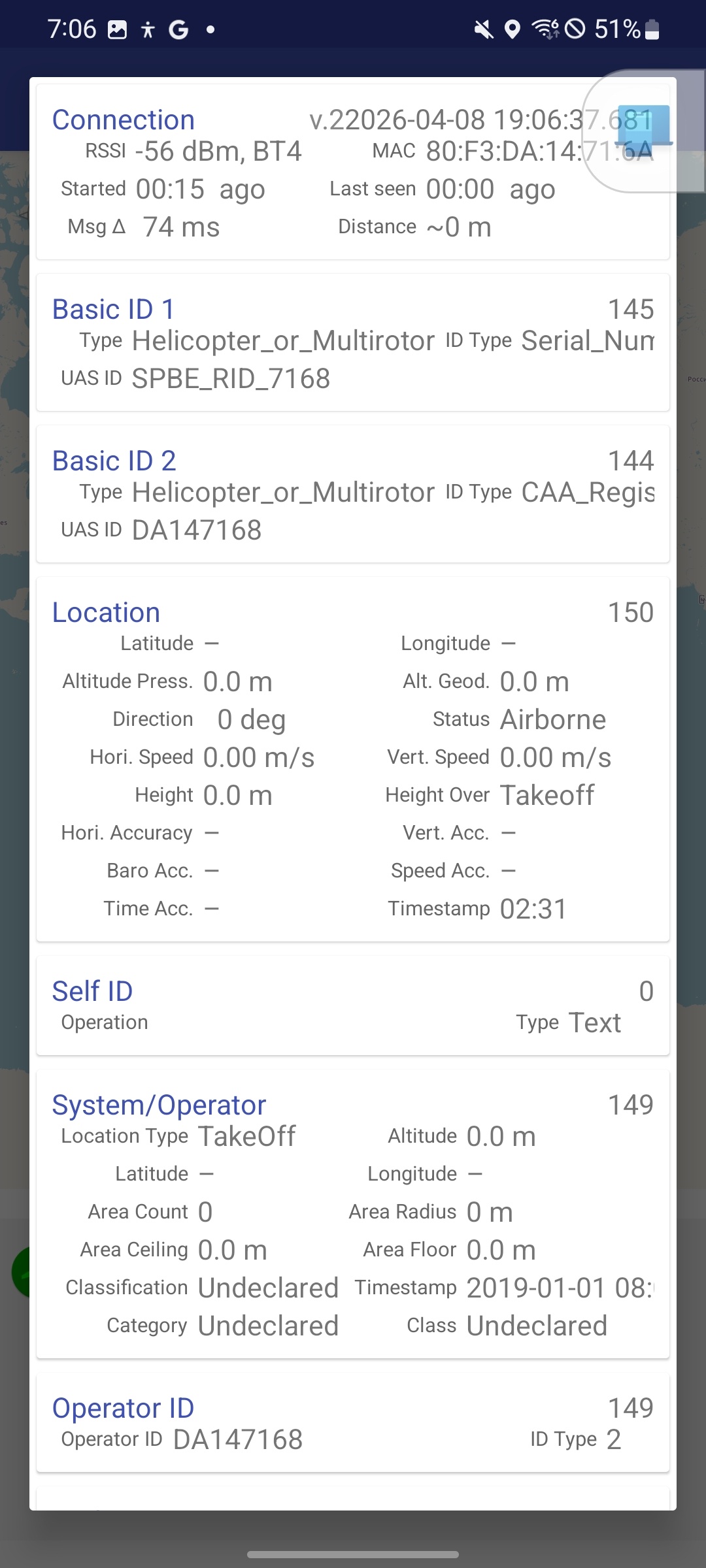
VIII. Verification with Third-Party App
It is recommended to use a receiver app like OpenDroneID to verify the broadcast.
1. Broadcast Verification
Based on your screenshots, the broadcast signal has been successfully received by OpenDroneID.
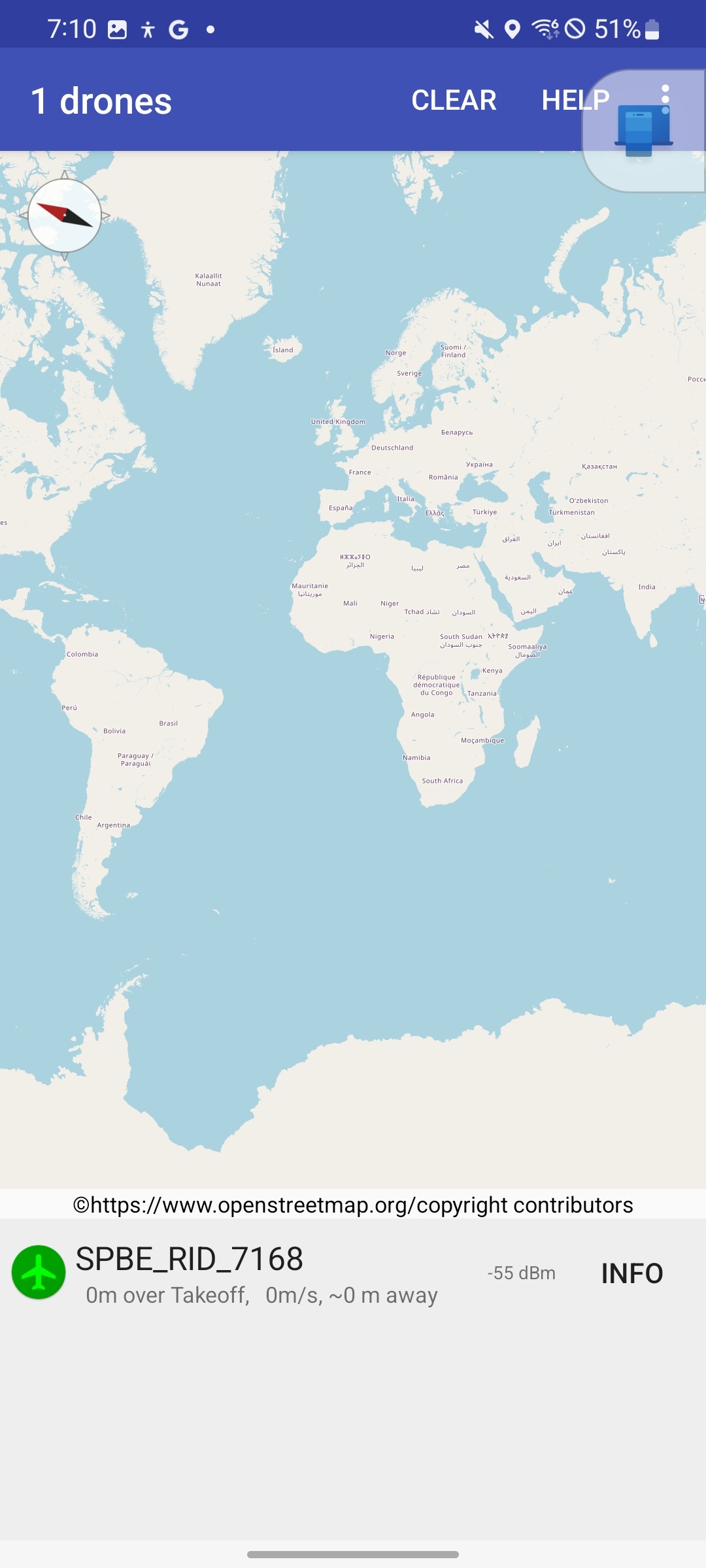
2. Map View Verification
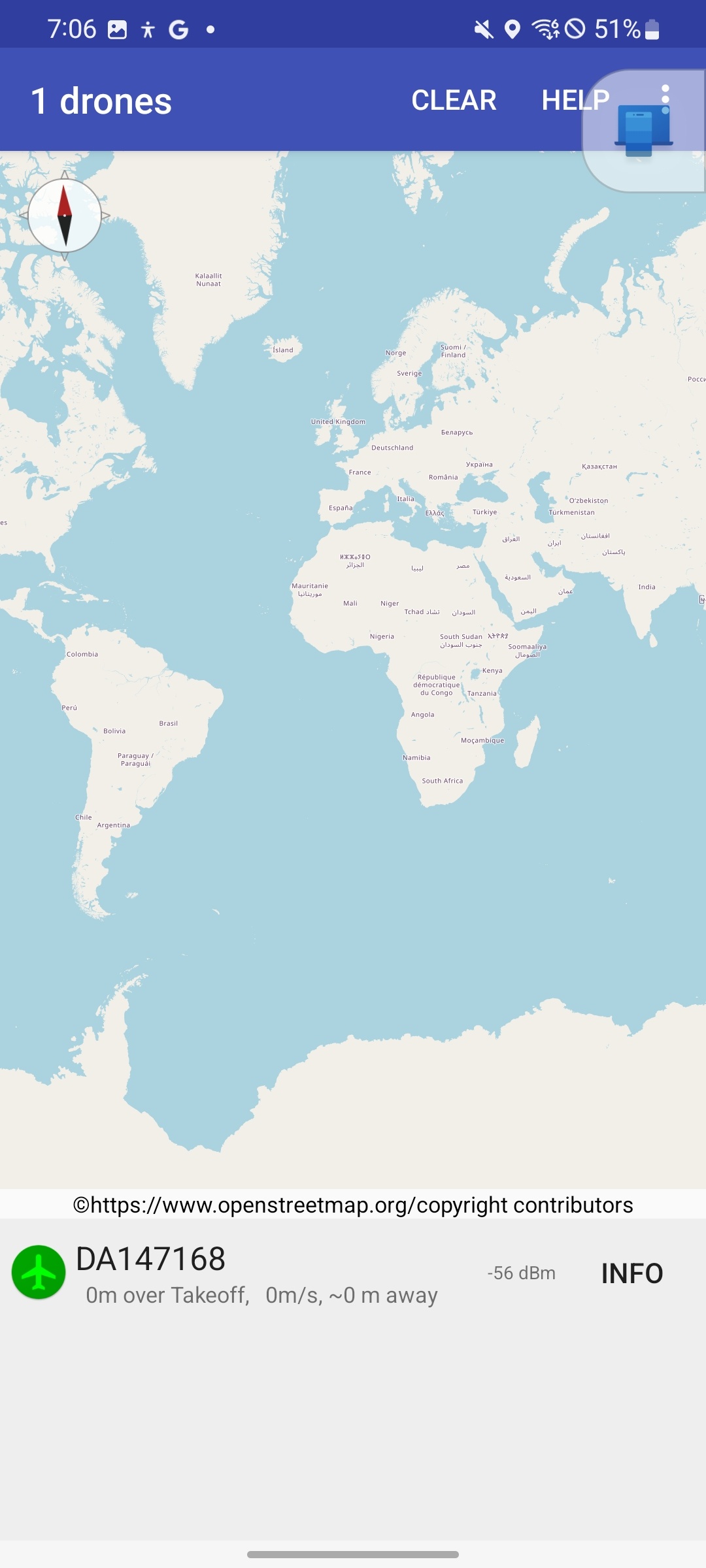
In the OpenDroneID map view, you should see:
- 1 drone detected.
- A device card at the bottom displaying the broadcasted object.
- Examples observed: SPBE_RID_7168 and DA147168.
- This indicates the device is successfully broadcasting RID information and is being detected by the receiver app.
3. Detail Page Verification
Tap INFO to view detailed broadcast content. The main items visible in the screenshot include:
Connection
- RSSI: Signal strength
- BT4: Bluetooth 4 broadcast
- MAC Address
- Started / Last seen
- Distance
Basic ID 1
- Type: Helicopter_or_Multirotor
- ID Type: Serial_Num
- UAS ID: SPBE_RID_7168
- Note: The first Basic ID uses the Serial Number.
Basic ID 2
- Type: Helicopter_or_Multirotor
- ID Type: CAA_Regis
- UAS ID: DA147168
- Note: The second Basic ID uses the Registration ID.
Location
Displays:
- Latitude / Longitude
- Altitude
- Direction
- Horizontal Speed
- Vertical Speed
- Height
- Timestamp
Note: If your current screenshot shows — for latitude/longitude and 0 for speed/altitude, it usually indicates that there was no valid dynamic positioning data at the time or the data was not fully output in the test environment.
System/Operator
Displays:
- Location Type
- Operator related info
- Classification / Category / Class
- Timestamp
Operator ID
- Operator ID: DA147168
- ID Type: 2