
Flashing Flight Controller Firmware Wirelessly via App for F7V3 / F405 AIO / Little Yellow Brick 3
Flashing Flight Controller Firmware Wirelessly via App for F7V3 / F405 AIO / Little Yellow Brick 3
1.Search for your SpeedyBee flight controller. If it is bricked, click Firmware Recovery in the Toolbox, then follow the instructions starting from Step 4.
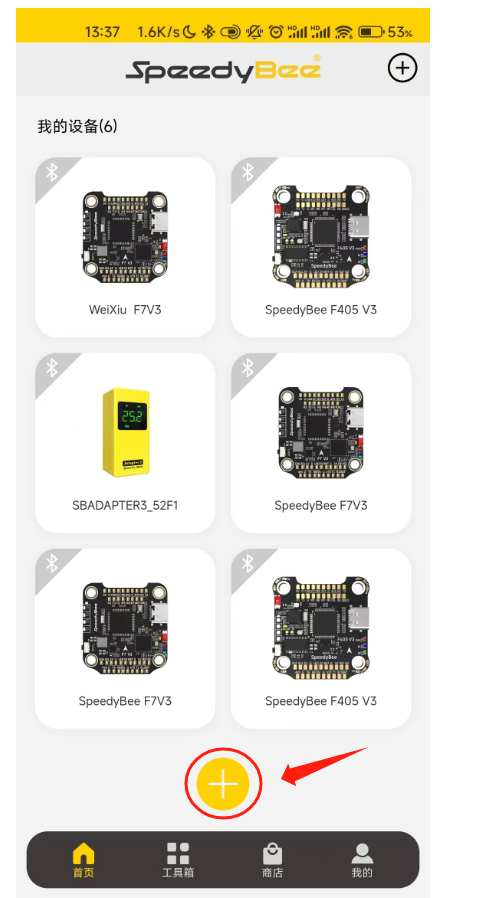
2
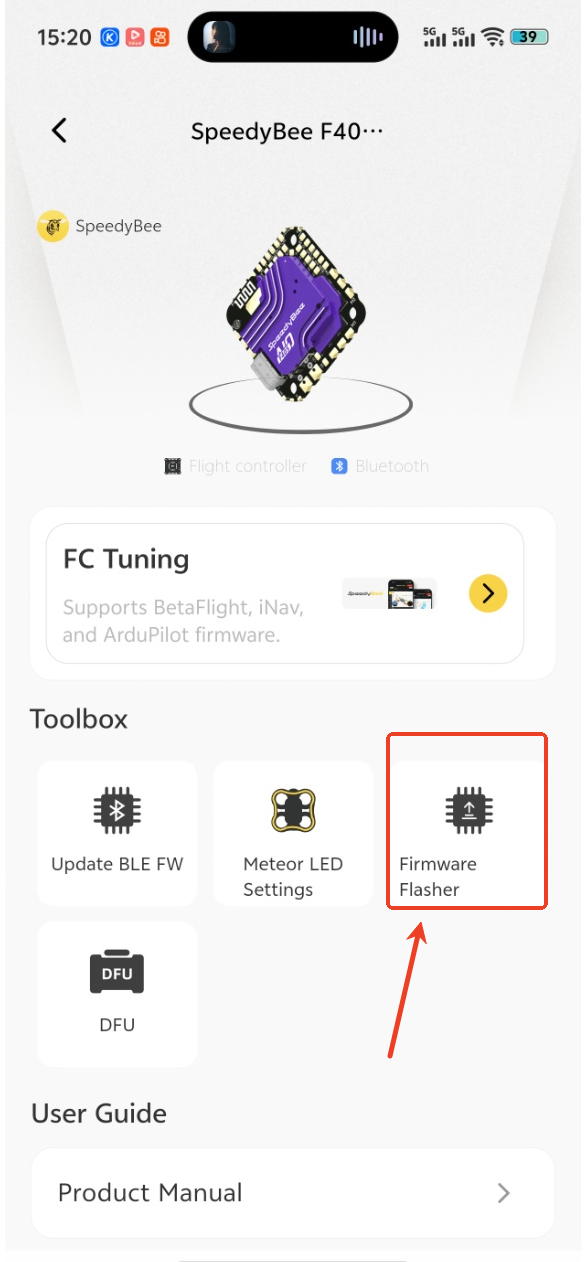
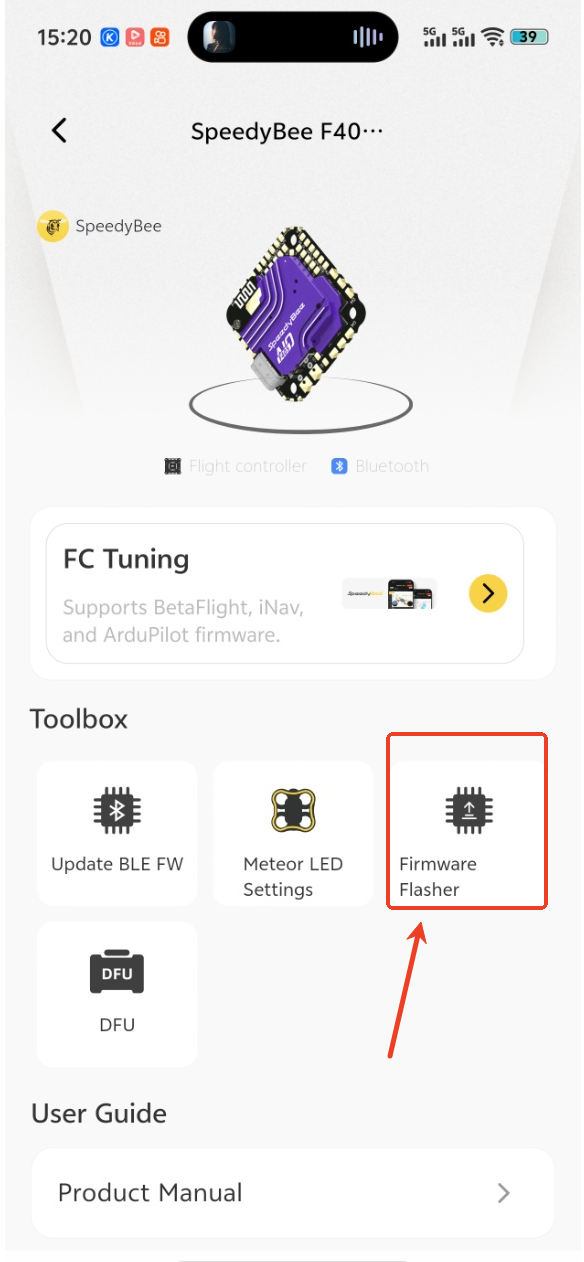
3. Select Flash Flight Controller Firmware.
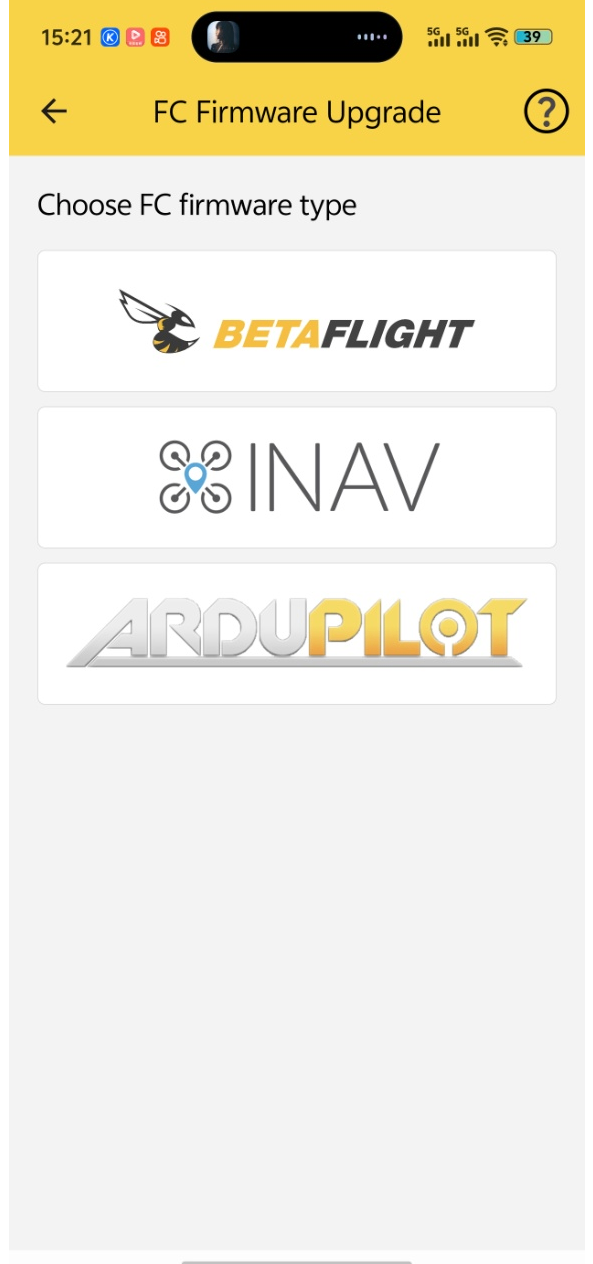
4. Select the firmware type according to your flight controller.
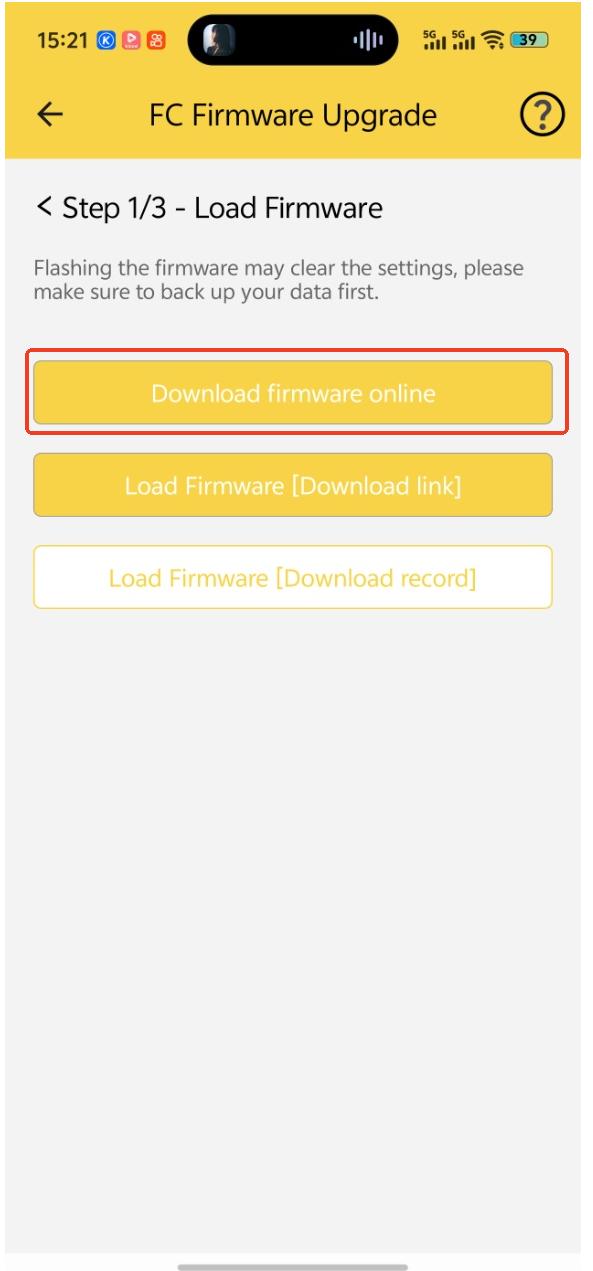
5. Load the online firmware.
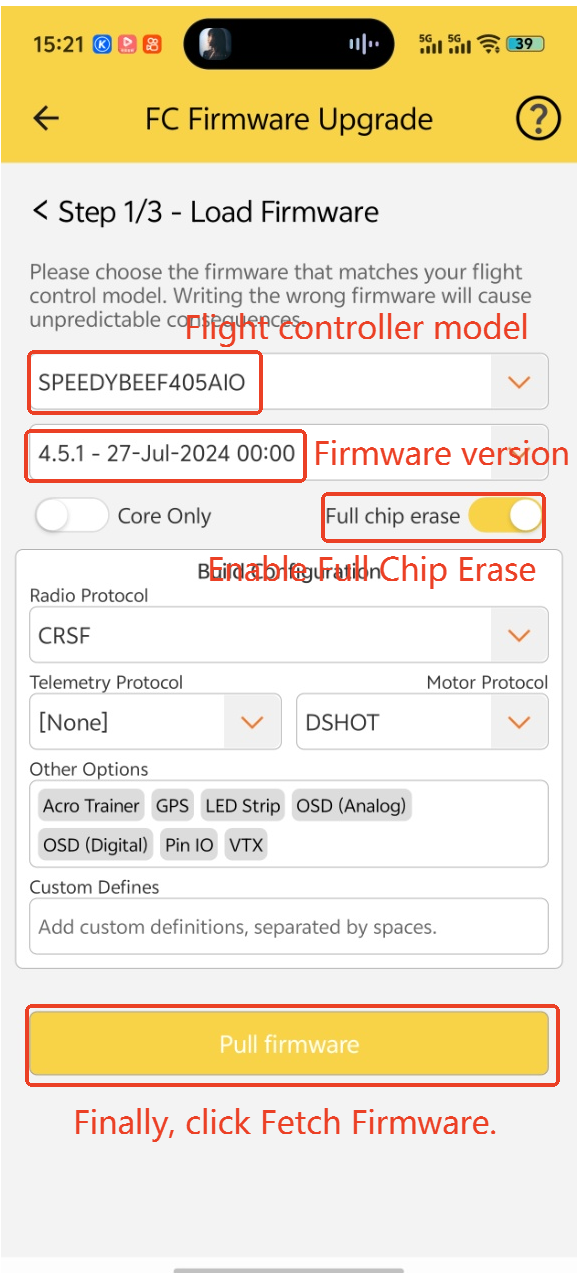
6. Select the flight controller model and firmware version, and enable Full Chip Erase.
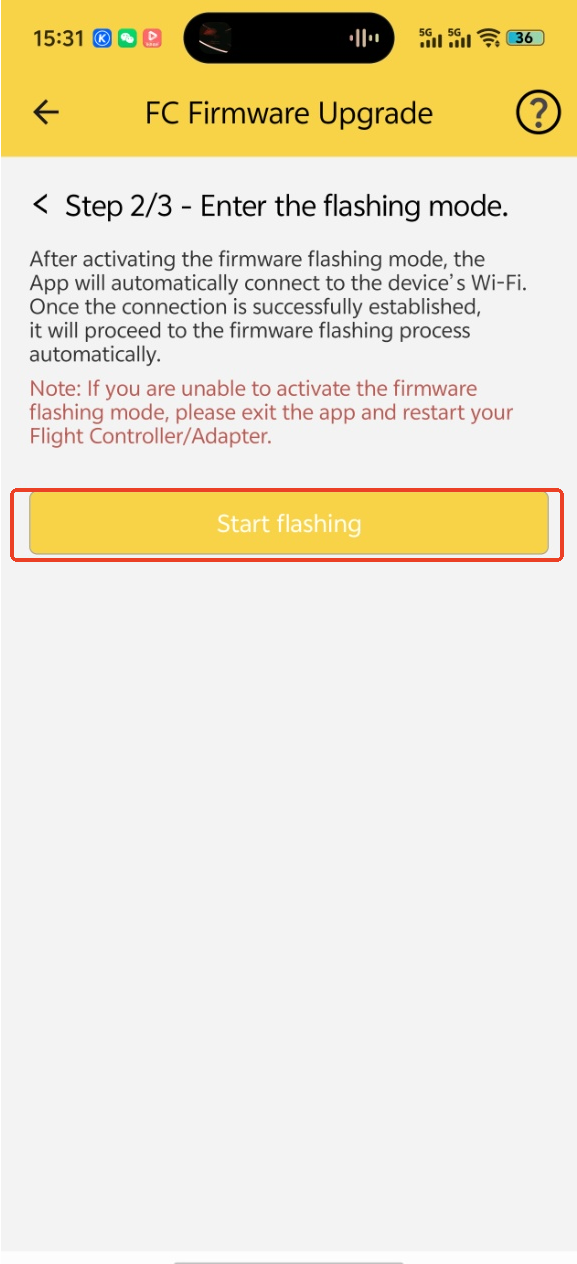
7. Enter Flashing Mode.
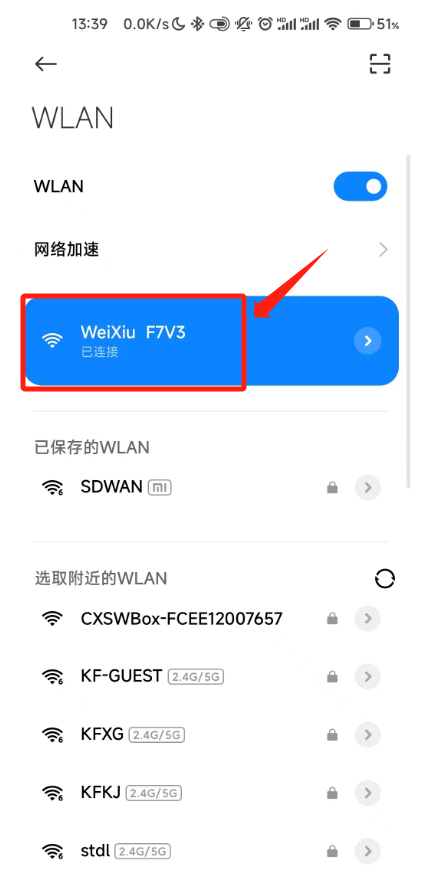
8. Connect to the flight controller’s Wi-Fi, usually named starting with SpeedyBee. For Little Yellow Brick Adapter 3, return to the app.
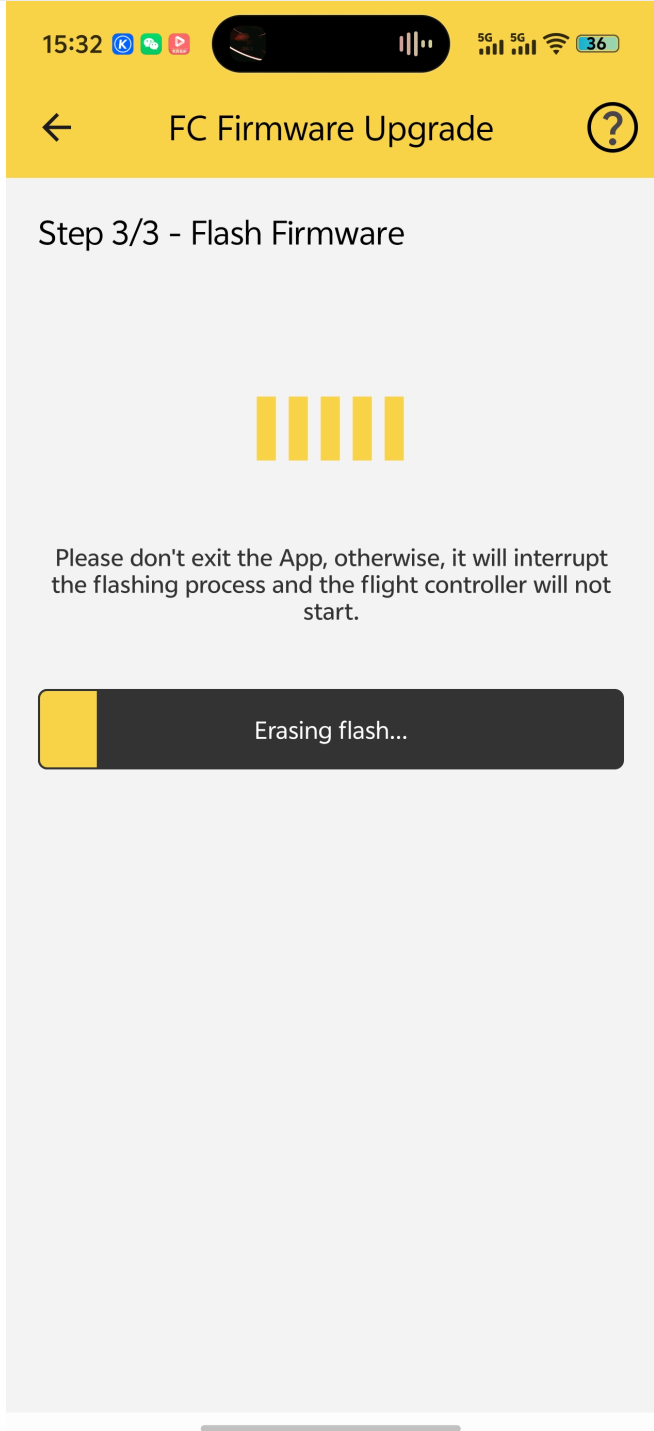
(After returning to the app, some phones may get stuck at the screen shown below. You can try turning off the mobile data connection on your phone.)
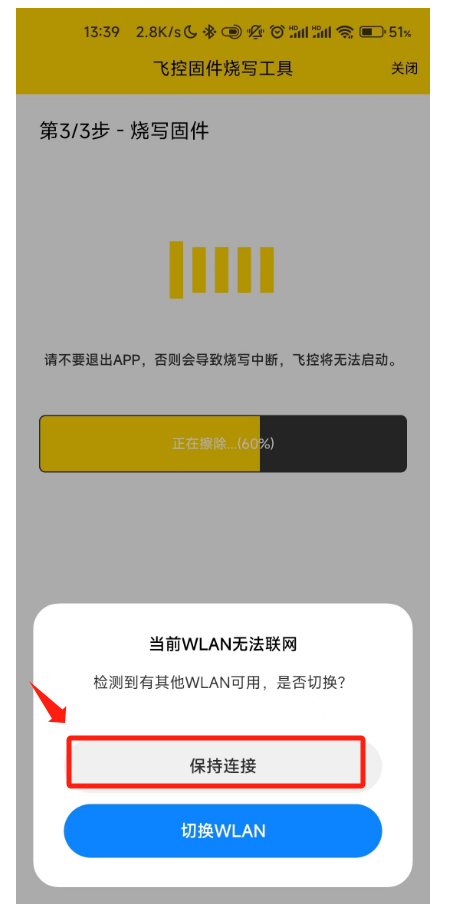
9. On some phones, when Wi-Fi with no internet is detected, a prompt may appear asking whether to stay connected. Select Keep Connected.
After flashing the firmware, when connecting to the flight controller for the first time, generally select Custom Default.